
Fake Windows Update Prompt
Diego Cadogan • September 29, 2026
Is That Windows Update Real? How to Spot a Fake in 10 Seconds
This month, several of our clients called us before clicking a "Windows security update" message. That was exactly the right move. Here's how you can tell the difference on your own.
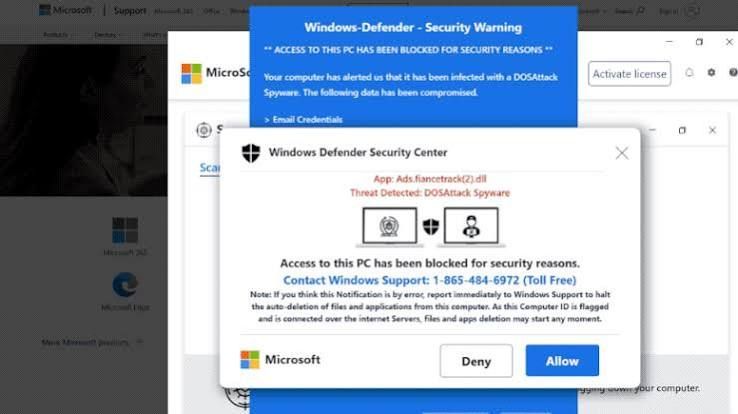
Real Windows updates:
- Show up quietly, usually a small notice near the clock or a restart reminder
- Live in one place: Start > Settings > Windows Update
- Never ask you to call a phone number
- Never ask for payment, gift cards, or your bank info
- Never ask you to download a "remote support" app
Fake update warnings usually:
- Pop up inside your web browser (Chrome, Edge, Firefox)
- Take over the whole screen, flash, or play a loud alarm
- Say your computer is "infected" or "locked"
- Push you to call "Microsoft Support" at a number on the screen
- Rush you with a countdown or "act now" language
If you see one:
- Don't click anything inside the message, even "Close" or "OK"
- Press Ctrl + W to close the browser tab, or Alt + F4 to close the browser
- If it won't close, press Ctrl + Shift + Esc, select your browser, and click End task
- Want to double-check? Open Start > Settings > Windows Update yourself. If nothing's waiting there, the popup was fake.
If you already clicked or called:
- Unplug your internet or turn off Wi-Fi
- Don't let anyone connect to your computer
- Call us right away
- If you gave out card or bank details, call your bank's number on the back of your card
- Change your passwords from a different, trusted device
The golden rule: Microsoft will never call you, and a real update will never ask you to call them.
When in doubt, stop and call CapCity.Tech at 785-380-8545. A 2-minute call beats a drained bank account.
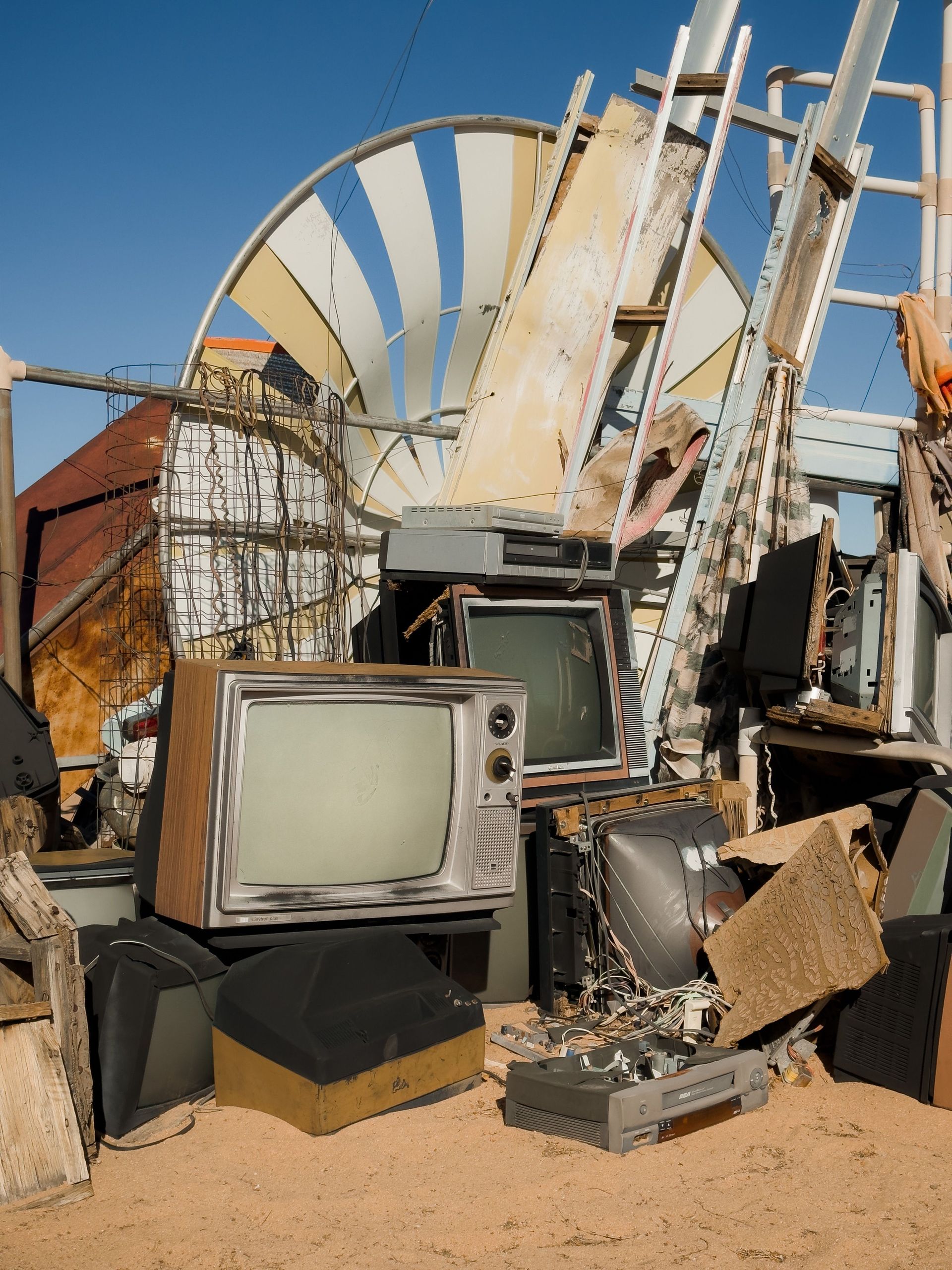
Since our rebrand, one question keeps landing in our inbox: "Do you still recycle?" Yes, we do. And we'll come get it.
Most people think a hacked computer looks like something: a scary popup, a frozen screen, a ransom note. But some of the most dangerous software on a computer never shows itself at all.

Last month a client called us in tears. She'd tried to buy something online for $300, something went wrong with the order, and a chat popped up offering to help. The "agent" had her install a program called UltraViewer so he could "look into it."