

How to Change Your Windows 11 Password and PIN
November 12, 2025
Need to change your password or PIN on a Windows 11 computer? We have you covered!

Changing Your Password
- Open Settings
- Click the Start button (Windows logo in the bottom left corner)
- Click on "Settings" (it looks like a gear icon)
- Go to Sign-in OptionsClick on "Accounts" in the left sidebar
- Click on "Sign-in options"
- Change Your PasswordFind the section labeled "Password"
- Click on it to expand the options
- Click the "Change" button
- Enter your current password when asked
- Type your new password, then type it again to confirm
- Add a password hint that will help you remember it (but don't make it too obvious!)
- Click "Next" and then "Finish"
Changing Your PIN
- Open Settings (if you closed it)
- Click the Start button
- Click on "Settings"
- Go to Sign-in OptionsClick on "Accounts" in the left sidebar
- Click on "Sign-in options"
- Change Your PINFind the section labeled "PIN (Windows Hello)"
- Click on it to expand the options
- Click the "Change PIN" button
- Enter your current PIN
- Type your new PIN (it must be at least 4 numbers)
- Type the new PIN again to confirm
- Click "OK"
Important Tips:
- Make sure you remember your new password and PIN before closing the Settings window
- Write them down and keep them in a safe place if needed
- Your PIN is usually easier and faster to use for daily login
- Your password is important for other security features, so keep both secure
That's it! Your password and PIN are now updated.

Since our rebrand, one question keeps landing in our inbox: "Do you still recycle?" Yes, we do. And we'll come get it.
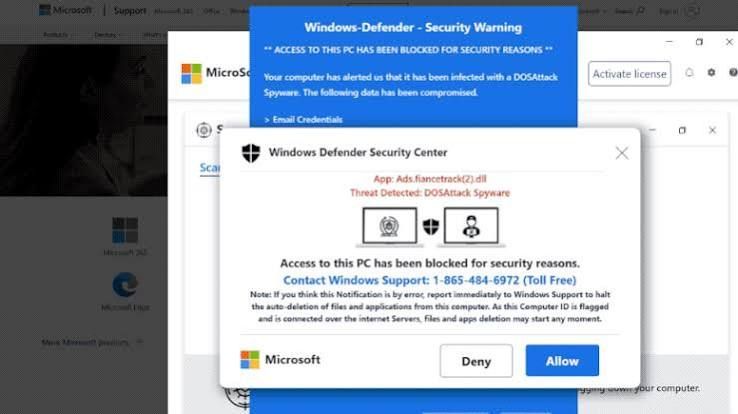
Is That Windows Update Real? How to Spot a Fake in 10 Seconds This month, several of our clients called us before clicking a "Windows security update" message. That was exactly the right move. Here's how you can tell the difference on your own.
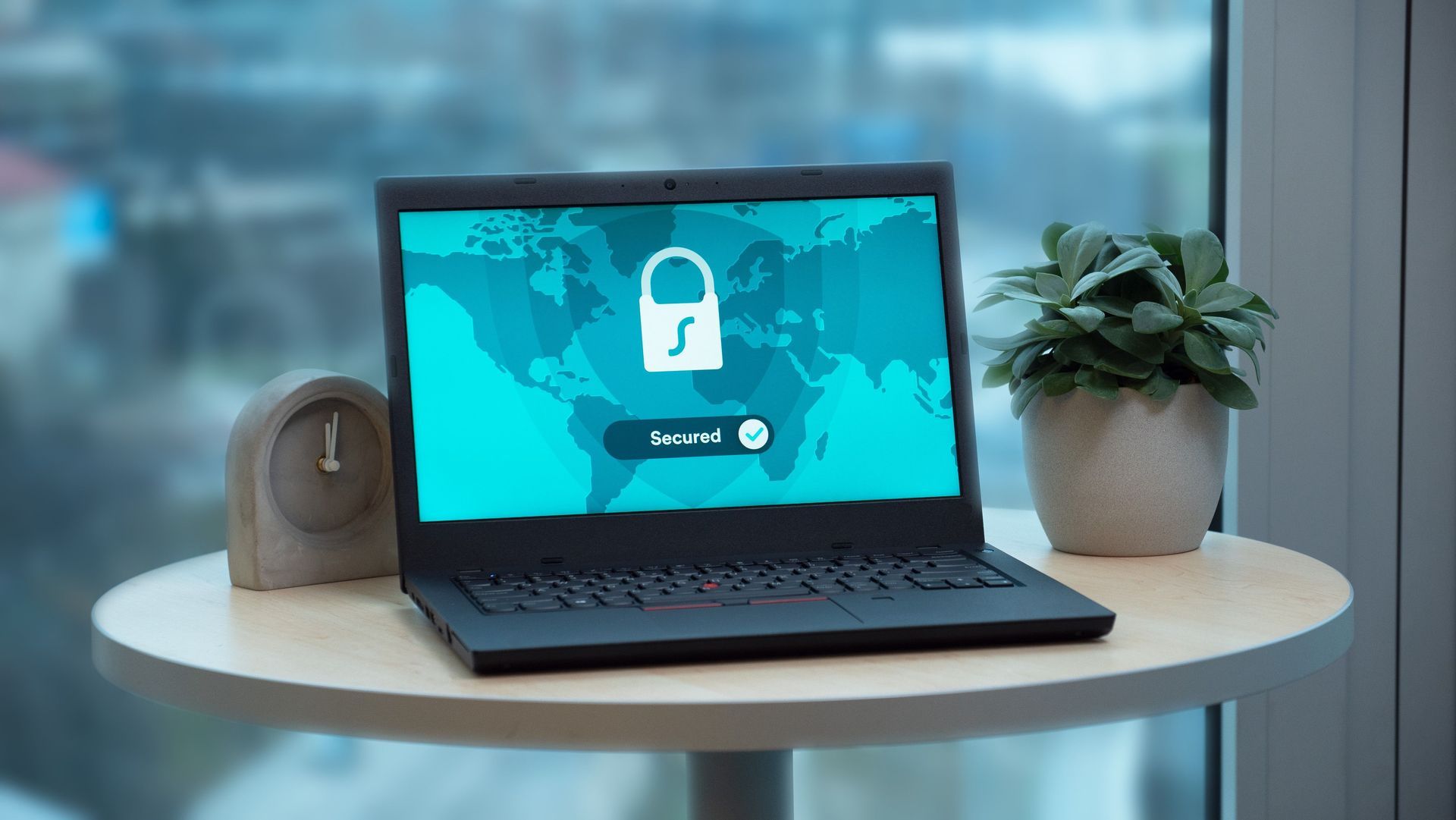
Most people think a hacked computer looks like something: a scary popup, a frozen screen, a ransom note. But some of the most dangerous software on a computer never shows itself at all.