

Why (and How) to Clear Your Browser Cache and Cookies
May 27, 2025
Clearing Your Browser's Cache and Cookies
Ever had a website not load right, or something just feels off online? The fix might be easier than you think: clear your browser cache and cookies.

What Are Cache and Cookies?
- Cache: Your browser stores pieces of websites (like images and files) to help them load faster next time.
- Cookies: Small files websites use to remember things like your login, shopping cart, or preferences.
Why You Should Clear Them
- Fix website loading issues (broken buttons, pages not updating)
- Protect your privacy (especially on shared computers)
- Sign out of all accounts (great if you lost access or switched users)
- Speed things up (overloaded cache can slow your browser down)
When Should You Clear Them?
- A website isn’t working right
- You’re seeing old info that won’t refresh
- You’re logged into the wrong account
- You’re troubleshooting online issues
How to Clear Cache and Cookies (Quick Steps)
Google Chrome
- Click the 3 dots (top right)
- Go to Settings > Privacy and Security
- Click Clear browsing data
- Select Cookies and cached images/files
- Click Clear data
Microsoft Edge
- Click the 3 dots
- Go to Settings > Privacy, search, and services
- Under Clear browsing data, click Choose what to clear
- Check Cookies and cached files
- Click Clear now
Firefox
- Click the 3 lines (menu)
- Go to Settings > Privacy & Security
- Scroll to Cookies and Site Data
- Click Clear Data
Still having issues after clearing cache?
Reach out to Top City Tech — we’re happy to help you troubleshoot.

Since our rebrand, one question keeps landing in our inbox: "Do you still recycle?" Yes, we do. And we'll come get it.
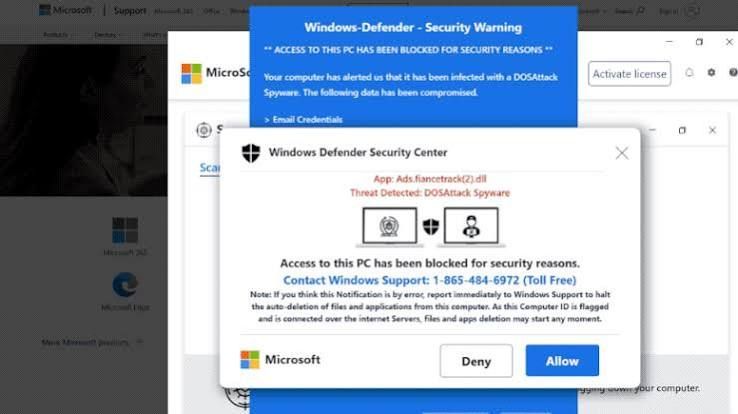
Is That Windows Update Real? How to Spot a Fake in 10 Seconds This month, several of our clients called us before clicking a "Windows security update" message. That was exactly the right move. Here's how you can tell the difference on your own.

Most people think a hacked computer looks like something: a scary popup, a frozen screen, a ransom note. But some of the most dangerous software on a computer never shows itself at all.